.png)
Email Notifications
You can create email notification under your profile settings. We have several email notifications that can send data directly to your InspectAll email address. Email notification will be emailed to you every month, week, day, or hour depending on the frequency you select.

Below is a description of each email notification you can add and instructions on how to set them up.
Priorities Detailed
Description
See recent answers with a priority found by the selected teams. This can be setup to be sent daily or hourly. Each answer has a link to its account, folder, asset, and form. Each answer's question, priority, resolution, and photos are shown.
Email Preview

How to add this Email Notification
- Go to My Profile from within the web app.
- Scroll down to
My Email Notification. - Click
Add Notification. - Select the
Subject: "Priorities Detailed" - Select how often you want to be emailed. Note: emails will only be sent if data is found within the time period.
- Email me every
Hour. - Email me every
Day. - Select
Formsto filter the data to only priorities found within the forms selected. - Select
Foldersto filter the data to only priorities found within the types of folders selected. - Select
Teamto filter the data to only priorities found within the accounts assigned to the teams selected. - Click
Create.
Set up Notifications for other users
As an Admin user, you can also create notifications for other users. Just go to the Users menu under your name on the web, and click the blue pencil icon beside the user you want to edit.
Priorities Overview
Description
See recent priorities found in accounts assigned to the selected teams. Every high, medium, and low priority is listed by account and the number of priorities resolved is shown.
Email Preview

How to add this Email Notification
- Go to My Profile from within the web app.
- Scroll down to
My Email Notification. - Click
Add Notification. - Select the
Subject: "Priorities Overview" - Select the
Email Frequency. - Email me every
Day. - Email me every
Week: sent every week on Monday - Email me every
Month: sent every month on the 1st day of the month - Select
Teamto filter the data to only priorities found within the accounts assigned to the teams selected. - Click
Create.
My Schedule
Description
See a list of upcoming folder's and/or priorities assigned to you. Every folder's type, id, dates scheduled, description, account, and location are shown. Every priorities' question, due date, answer, form, and account are shown.
Email Preview

How to add this Email Notification
- Go to My Profile from within the web app.
- Scroll down to
My Email Notification. - Click
Add Notification. - Select the
Subject: "My Subscription" - Select the
Email Frequency. - Email me every
Day. - Email me every
Week: sent every week on Monday - Email me every
Month: sent every month on the 1st day of the month - Select if you want the email to tell you about
Folders Scheduleto you and/orPriorities Duethat are assigned to you. - Click
Create.
Priorities Overdue
Description
See all priorities past their resolution due date. Each priority has a link to it's account, folder, asset, and form. Each priorities' question, answer, resolution, and photos are shown.
Email Preview

How to add this Email Notification
- Go to My Profile from within the web app.
- Scroll down to
My Email Notification. - Click
Add Notification. - Select the
Subject: "My Subscription" - Select the
Email Frequency. - Email me every
Day. - Email me every
Week: sent every week on Monday - Email me every
Month: sent every month on the 1st day of the month - Select
Yes, show Assigned to Meif you ONLY want to see overdue priorities assigned to you. - Click
Create.
Push Notifications
The Push Notifications feature is currently in testing on both iOS and on most Android mobile devices. If you'd like to have the feature turned on for your account to test it out, have an Administrative user on your InspectAll account send an email to support@inspectall.com.
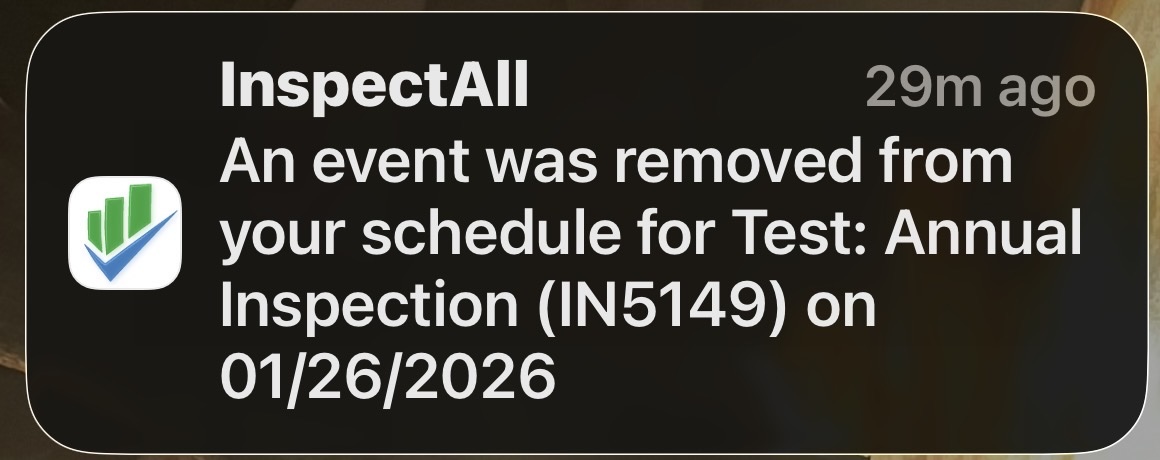
Details about the feature:
- When turned on for your account, it will send push notifications to your mobile users if something on their schedule is changed.
- The feature can be enabled or disabled for the entire account. When enabled, all mobile users will receive notifications specific to their own schedule.
- Notifications are only sent for schedule changes within the next 7 days by default. If you want to extend that notification range, please let us know when sending the request to have the feature enabled.
- Notifications are sent for date or time updates to an existing folder schedule, the addition of a new folder to the user's schedule, or if a folder is removed from the user's schedule.
- To prevent an overload of notifications at once, they are sent in batches every five minutes, and multiple schedule changes to the same folder are sent as a single notification.
- Mobile users will have the option to turn off notifications in their device settings.
Enable the Feature:
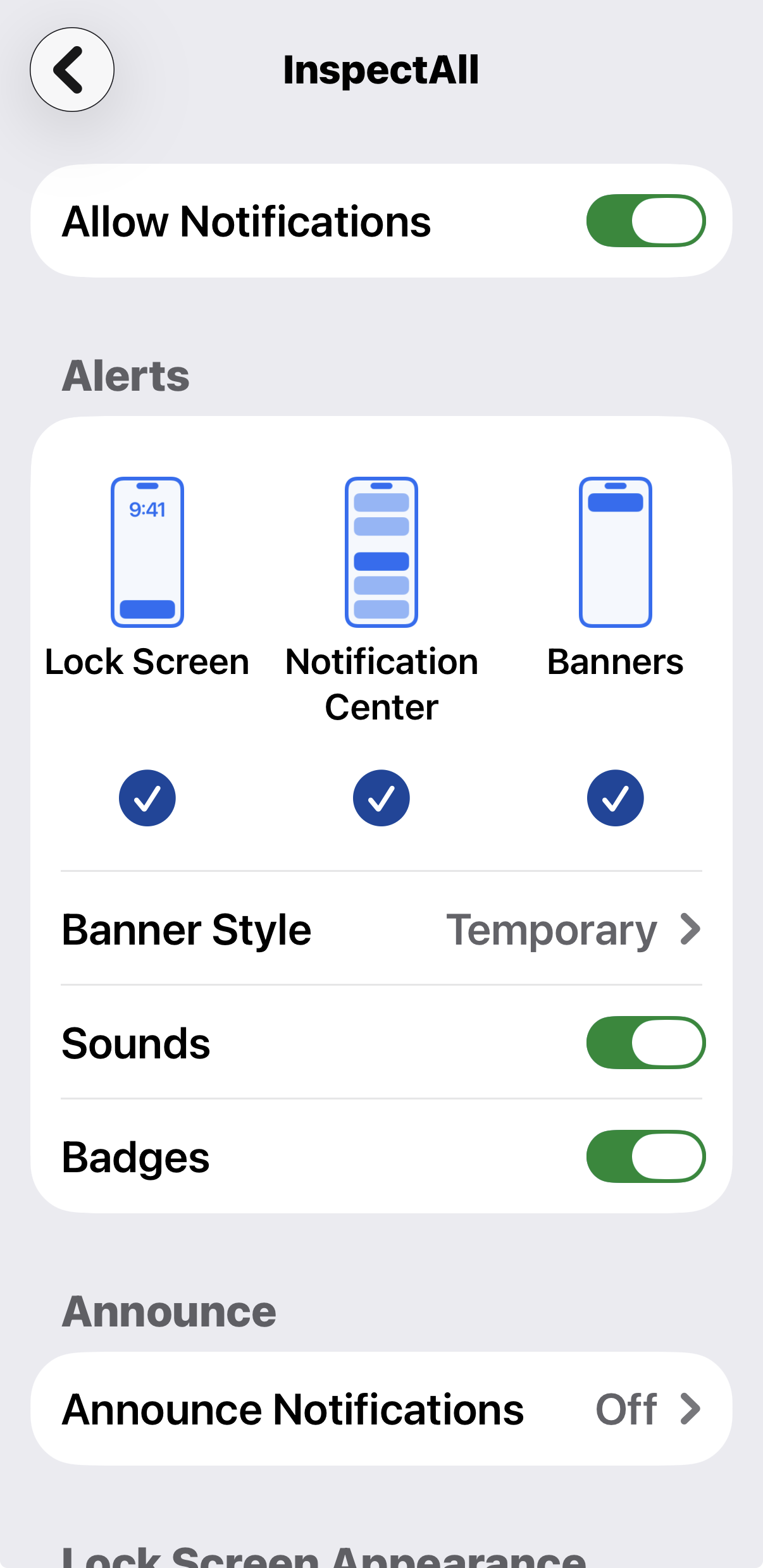
- Go to your device settings and search "InspectAll".
- Enable or disable the "Allow Notifications" setting.