.png)
Edit Folder Type Details
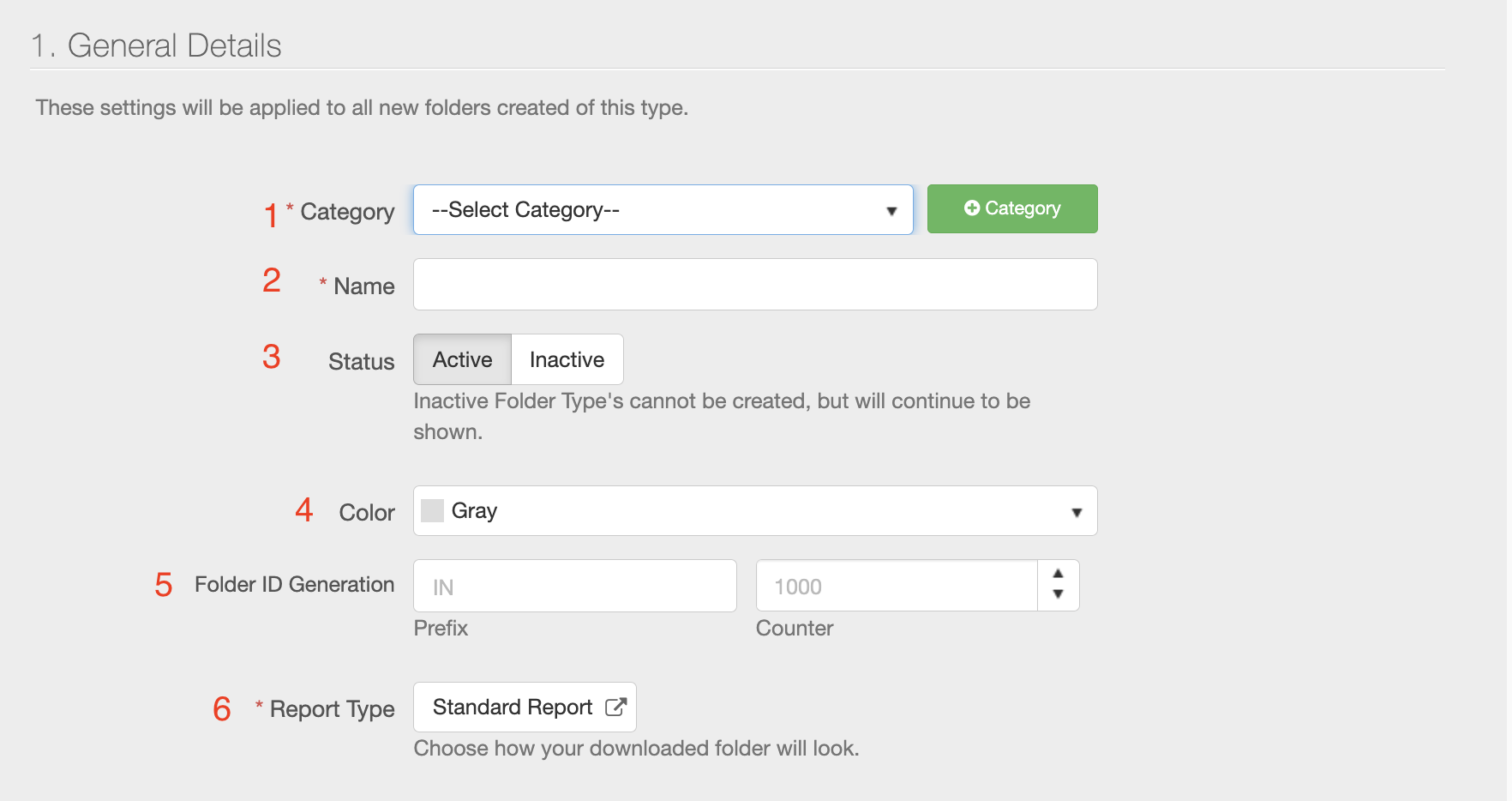
Folder Type details include the following report options:
- Category
- Folder Type Name
- Status
- Color
- Folder ID generation
- Default Report Type
How to set it up
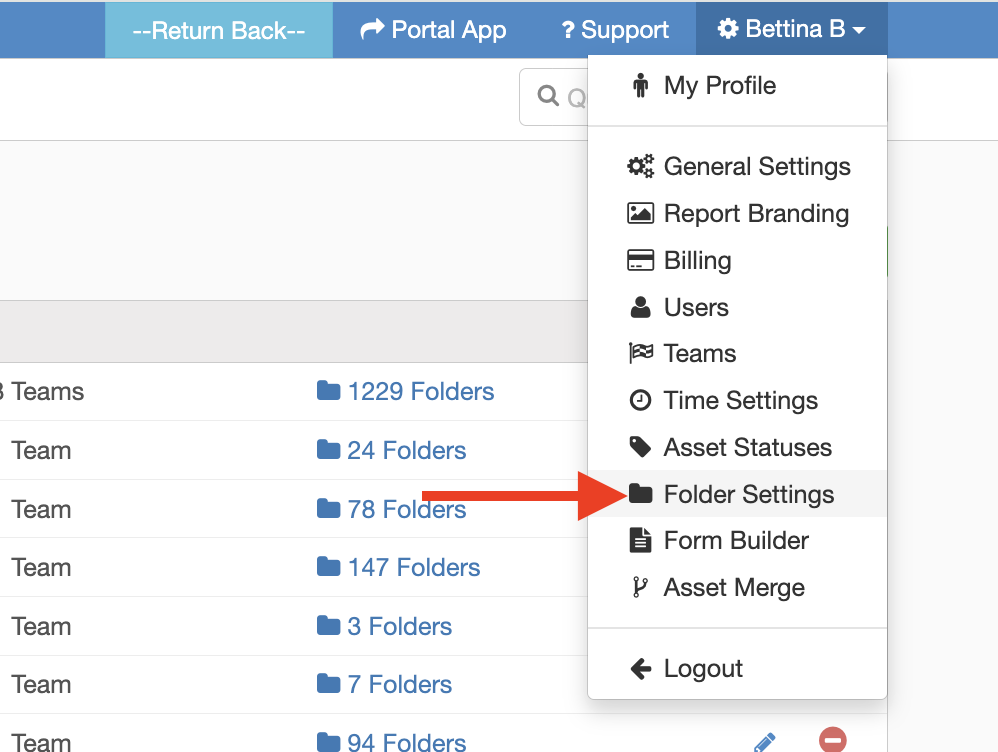
- From the InspectAll website, click your name (at the top right of the page) and select "Folder Settings" from the drop down menu.
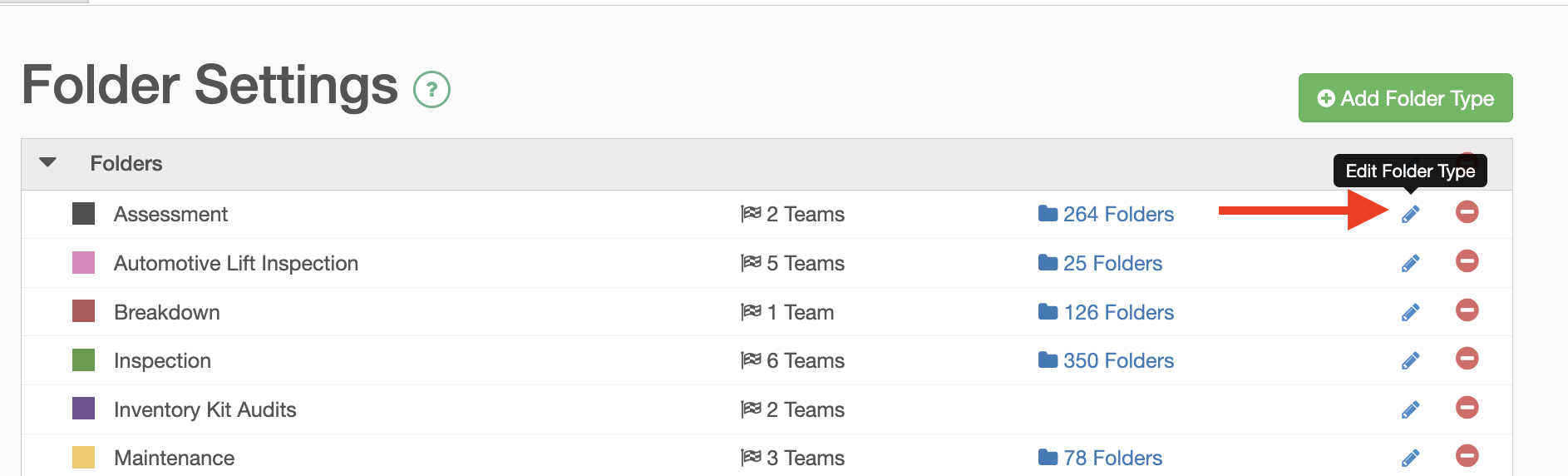
Click the blue pencil icon beside the folder type you want to edit.
General Details
- Select the Category from the drop down
- Name your Folder Type
- Active is the default status. If you want the folder type to be created but not accessible to create new folders of this type, set it to "Inactive"
- Color: This determines the color associated with the Folder type (on your folder tab and calendar and serves as just a visual aid).
- Folder ID Generation will determine what prefix and counter is applied to your automatically generated FOLDER ID for this type of folder only.
- Report Type: The standard folder report type is the default. If you want to select a different report for the default for this type, you can select it here. More on the Report Types available in InspectAll can be found HERE
Note: Reporting options for custom reports are not sometimes not editable from the user interface. You can check this options by following the instructions found HERE.