.png)
Folder Categories and Types
Introduction
Different workflows in InspectAll can be handled very efficiently by customizing your Folder Settings.
We suggest setting up a different folder type for each workflow. Folder types are not only a searchable "tag" in InspectAll, but also allow you to set up different report parameters for your Folder Report based on the type. In that way, you can change your folder type and change the report format.
Think about the type of work you do, and the frequency with which you do it, as well as how you will be presenting the final report internally or to your customer. That will determine how you label your Folder Types.
For example, if you plan to manage a Quality and Safety process in InspectAll, you may choose to organize your folders in the following manner:
- Quality (Folder Category)
- Quality Assurance Checks (Folder Type)
- Quality Control Measures (Folder Type)
- Safety (Folder Category)
- Hazard Assessments (Folder Type)
- Inspections (Folder Type)
- Accident Investigation (Folder Type)
If you are doing inspections as a service, as an example, you may choose to set up your folder types as follows:
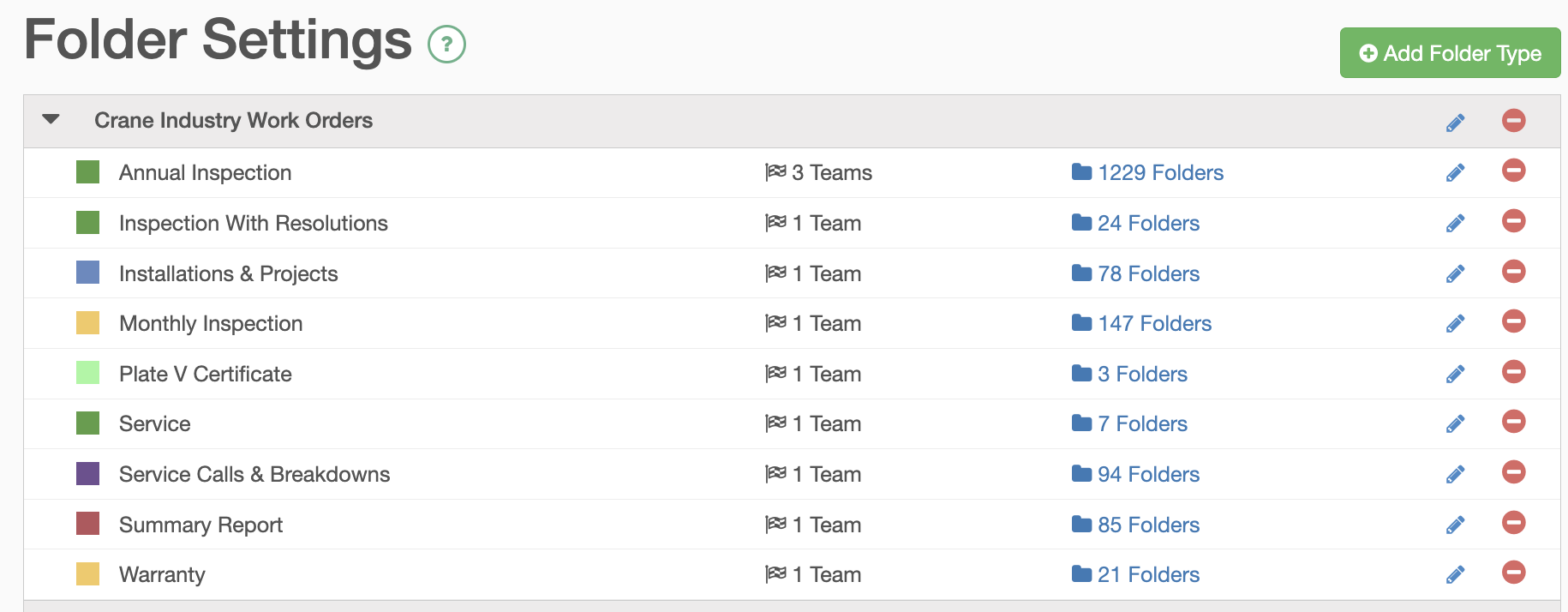
Folders can be setup with the following characteristics:
- Name & Color: Adds a name and color to every folder.
- Default Report: the report template that will be used on the printed folder report.
- Calculated Folder IDs: Setup a prefix and counter to add an id to each new folder automatically.
- Default Forms: create a workflow of forms for the folders by automatically adding forms to every new folder.
- Permissions: restrict teams from viewing particular folder types.
- Priority Levels: Choose which questions show on your folder report output.
Add a new Folder Category
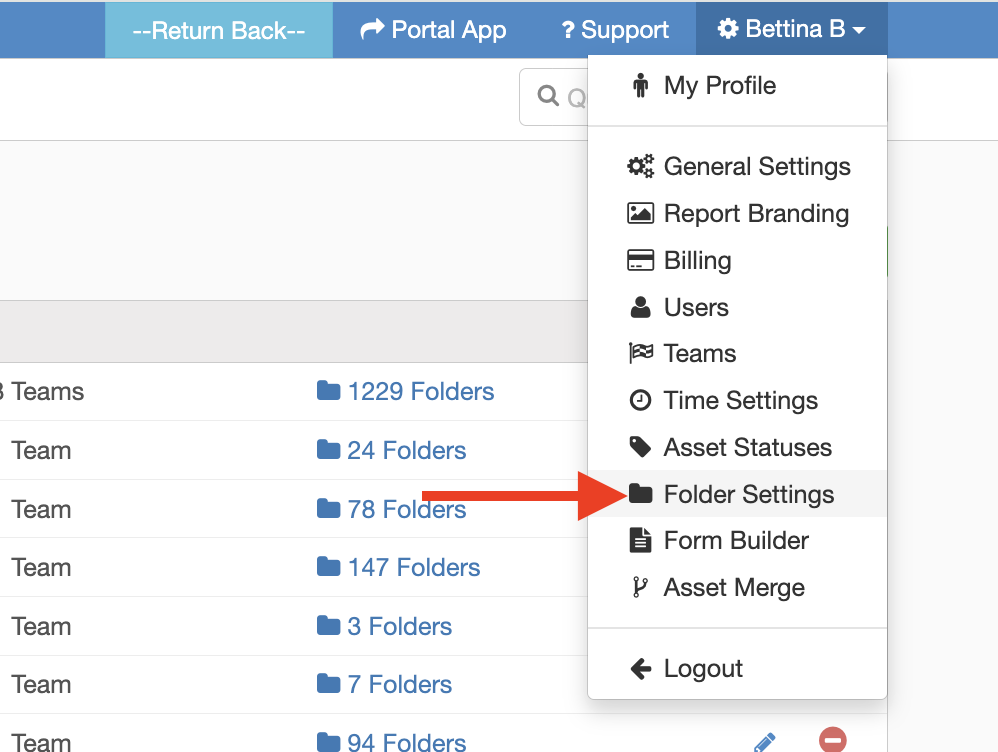
- From the InspectAll website, click your name (at the top right of the page) and select "Folder Settings" from the drop down menu.
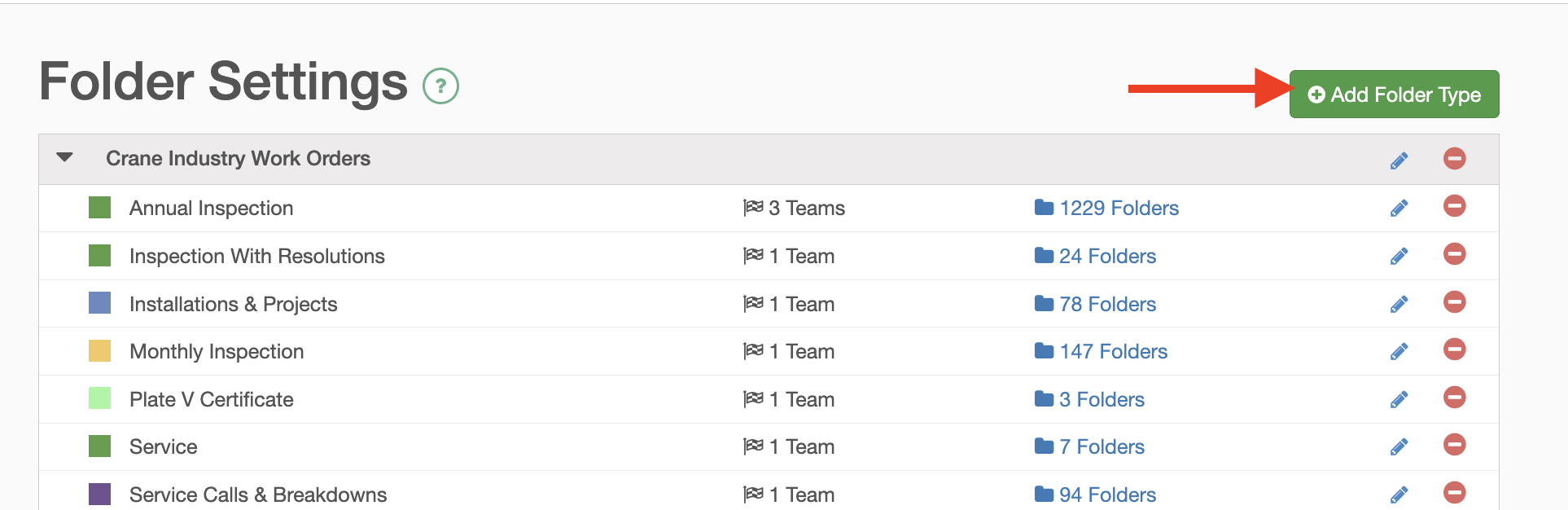
- Click the green "Add Folder Type" button.
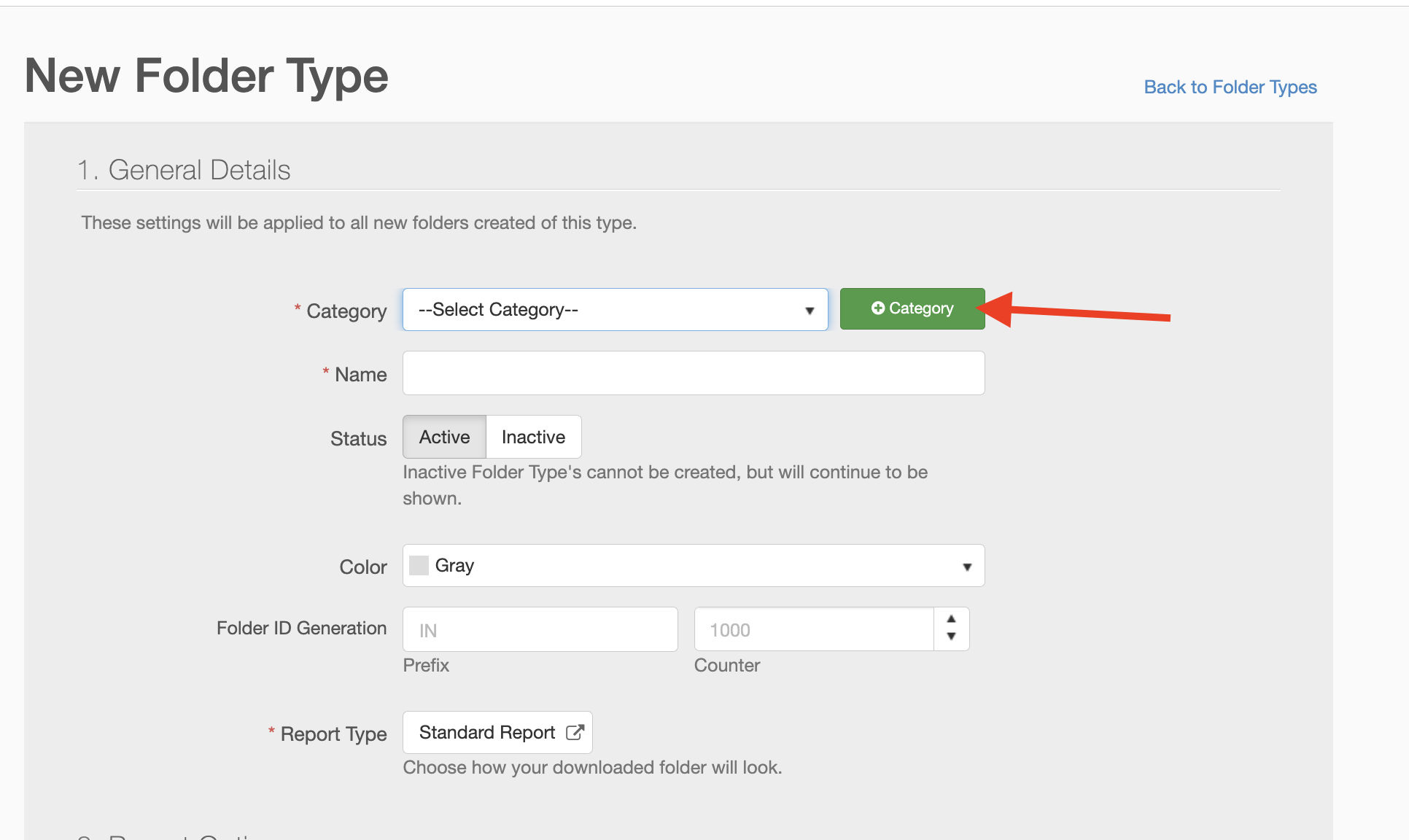
- Click "Add Category"
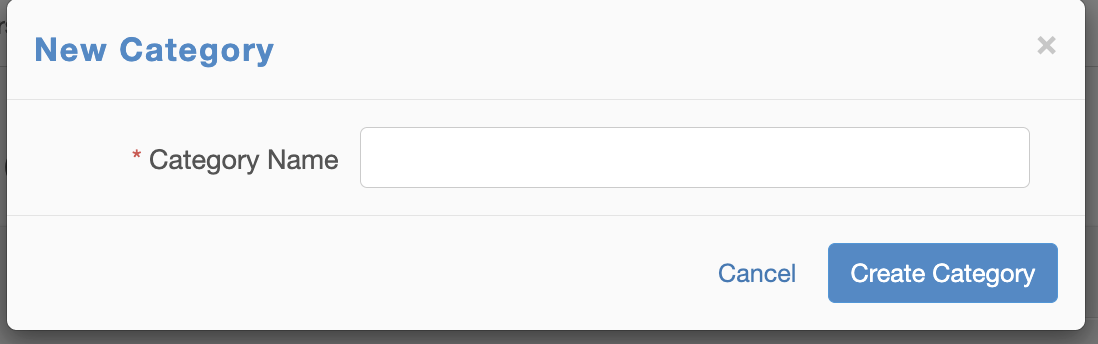
- Give your folder category a name and click on "Create Category"
Add a Folder Type
- From the InspectAll website, click your name (at the top right of the page) and select "Folder Settings" from the drop down menu.
- Click the green "Add Folder Type" button.