.png)
Multi-factor authentication (MFA)
SMS Multi-Factor Authentication (MFA) / Verification Codes
We offer multi-factor authentication (MFA) or two-factor authentication (2FA) as an optional security feature to help protect your account. When you choose to enable SMS-based MFA, we will send a one-time verification code (also called a one-time password or OTP) via text message (SMS) to the mobile phone number you provide or email a code to the email provided (depending on which method was opted into). This code is used solely to verify your identity during login, password reset, or other high-security actions on our service.
Read more about MFA terms and conditions HERE.
How to Add it to your InspectAll Account
To enable MFA on your InspectAll account, please have an Administrator email us at support@inspectall.com with the request. Once MFA has been added to your account, mobile users will see the option to authorize it on their device in settings and when they login to the InspectAll app.
Mobile Users - Authorizing MFA from the Mobile Device
To allow messages to be sent to your mobile device or email using MFA, go to the "Security" option in your main menu on your mobile device.

Toggle to turn on MFA for your device, then enter the phone number of the mobile device you will want to receive the authorization message with the code for login and click "Save Changes".

Web Users - Authorizing MFA from the website
If you have Web or Admin access to the InspectAll website, you can authorize MFA from your profile.
- Click "My Profile" on the drop down menu under your name
- Enter the mobile phone number where you want to receive the authorization code to login on your mobile device
- Toggle "MFA (Multi-Factor Authentication)" to "On"
- Click to "Update Profile"

After updating your profile to authorize MFA, you will receive a text message with a link to verify the number. Click the link.

After clicking the link, you will see a confirmation that reads, "SMS Verification".

When you login to the website or mobile app the next time, you will be prompted to receive a one-time passcode via text message or email to access the application.
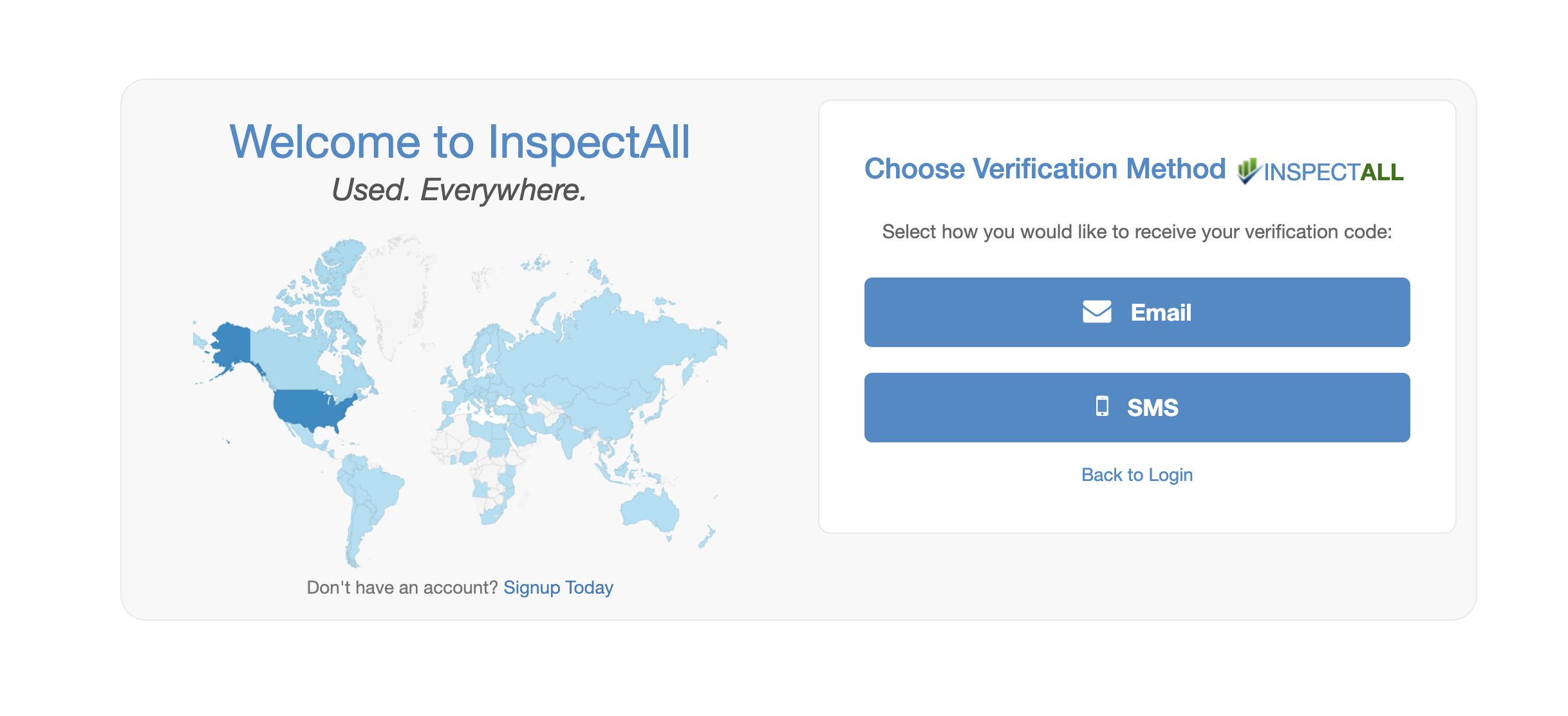
Receiving the Passcode to Login
Note: Mobile users will only be prompted to authorize MFA on their device after logging out and logging back in, or when first installing and logging into the InspectAll mobile application.
After logging in and the initial sync, mobile users will see the following screen, asking if they want to receive their authorization code to login via email or text message.
Choosing "Email" will send the email notification to the login email address under which the user is logging in.
Choosing "Text Message (SMS)" will send a text message to the phone number entered in the MFA settings on the mobile device or website.

Enter the One-Time Passcode you receive via Text Message or Email in the screen when prompted.

Note: The passcode will expire 5 minutes after it is sent. If you allow it to expire, click BACK to request a new code.

Once you've entered the correct code, you will be able to access the mobile app.
Turn OFF MFA on your device.
You can turn off MFA on your device at any time.
From the Mobile App
- Go to the "Security" option in your main menu on your mobile device.
- Toggle to turn off MFA.

From the Website
- Click "My Profile" on the drop down menu under your name
- Toggle "MFA (Multi-Factor Authentication)" to "Off"
- Click to "Update Profile"
