.png)
Show Resolved on Reports
Show or Hide Resolution information
This function determines if the "Resolved" designator and notes on resolve priorities show on the reports.
You can update the setting for just specific Folder Types in "Folder Settings" or you can update the setting to apply to all Folder Reports and Form Reports in "Branding.
- Resolutions. If you mark a priority as "Resolved", showing the resolutions will show that information on the folder report. You will see a green text "Resolved" as well as the comments entered in the Resolution field on the report.
More information on priority resolution HERE.

How to set it up
Folder Type Specific
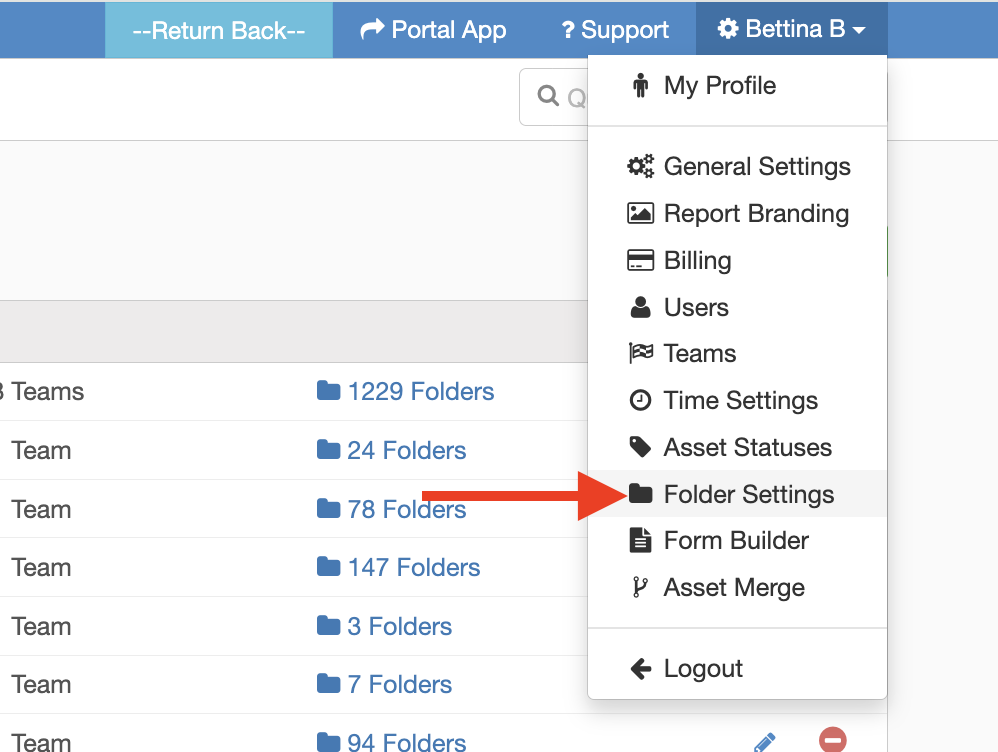
- From the InspectAll website, click your name (at the top right of the page) and select "Folder Settings" from the drop down menu.
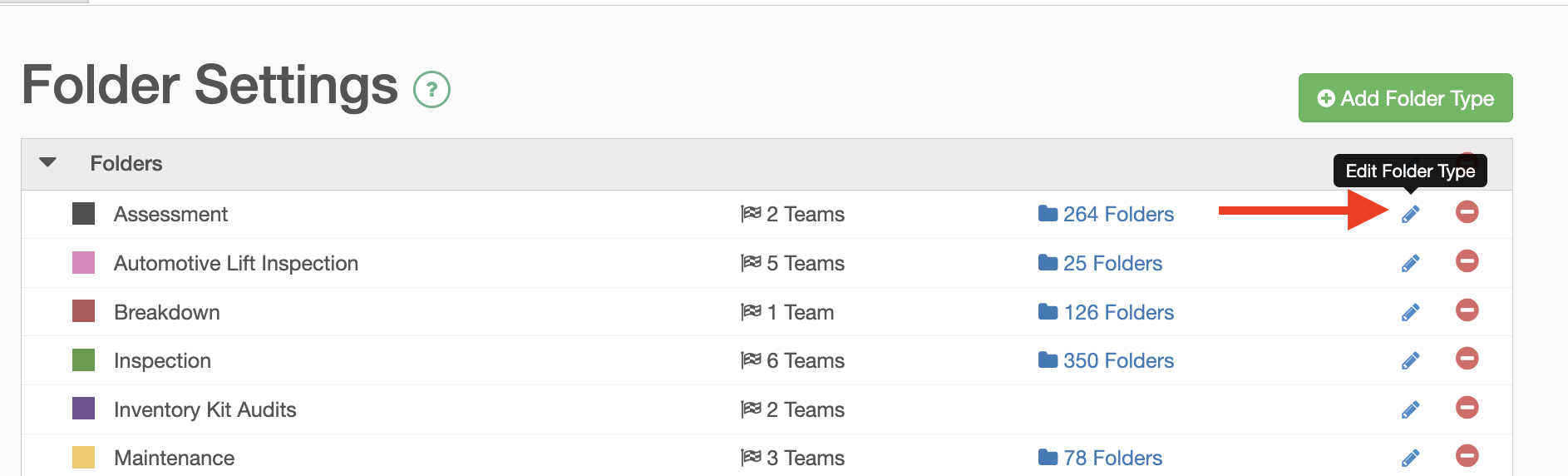
Click the blue pencil icon beside the folder type you want to edit.
- Under #2, "Report Options", click on the "Forms" tab.
- Be sure that the "Show Resolutions" box is checked off.

- Click "Update Folder Type" at bottom of screen to save the changes.
How to set it up
For all Folder and Form Reports
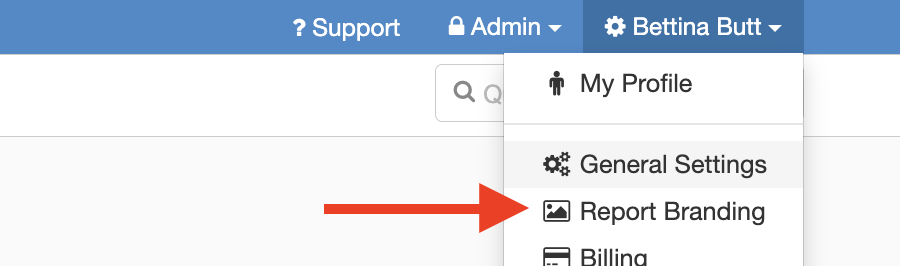
- Go to "Report Branding" in the drop down Admin menu on the website.
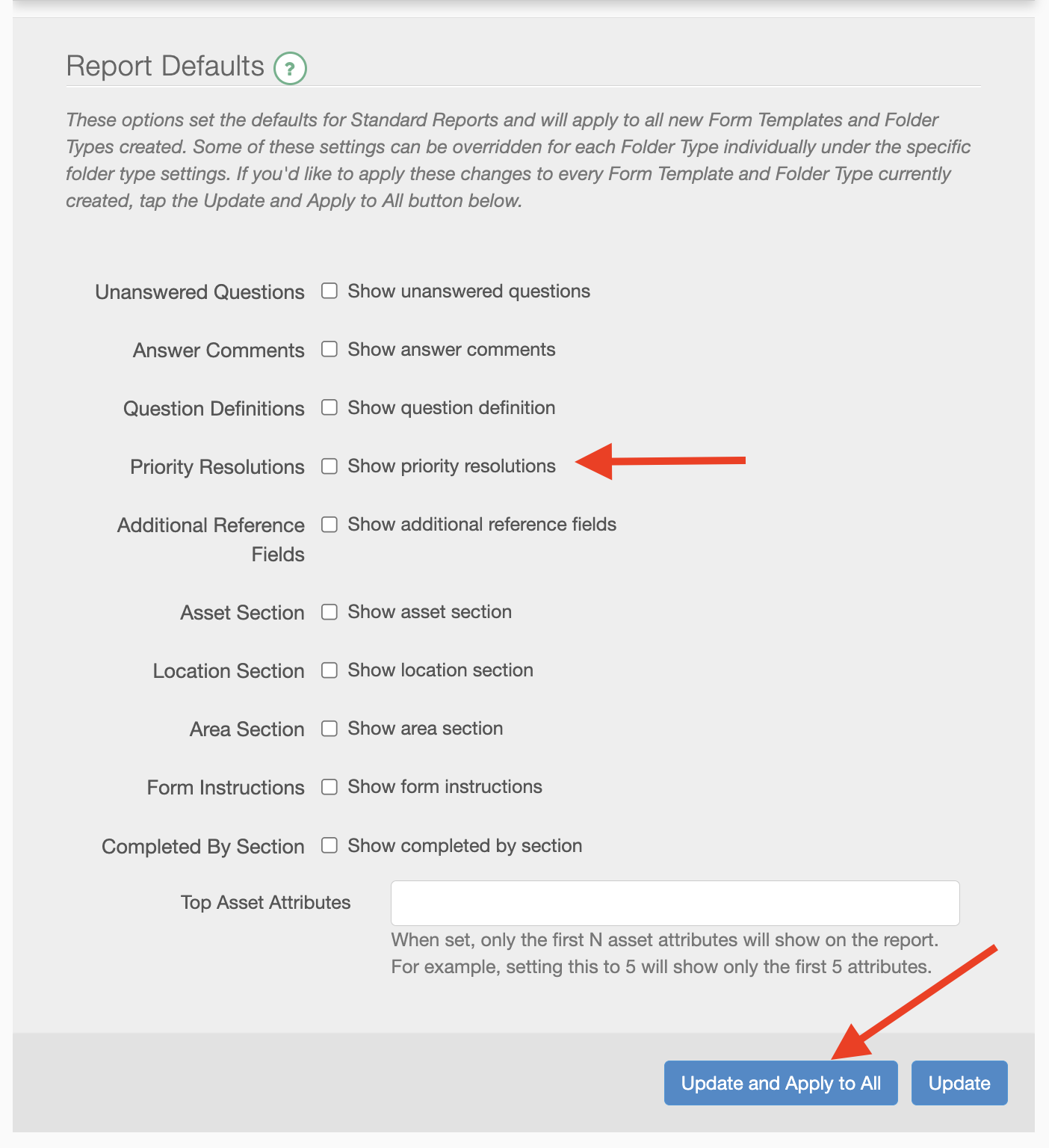
- Check off the "Show Priority Resolutions" option. Then click "Update and Apply to All"
More details on Report Branding options can be found HERE.